A current project screen answers what is true now. A revision comparison answers what changed between two recorded states, and the application audit answers which successful mutation occurred. Use them together when a delivery, billing, access, or compliance review needs more than memory.
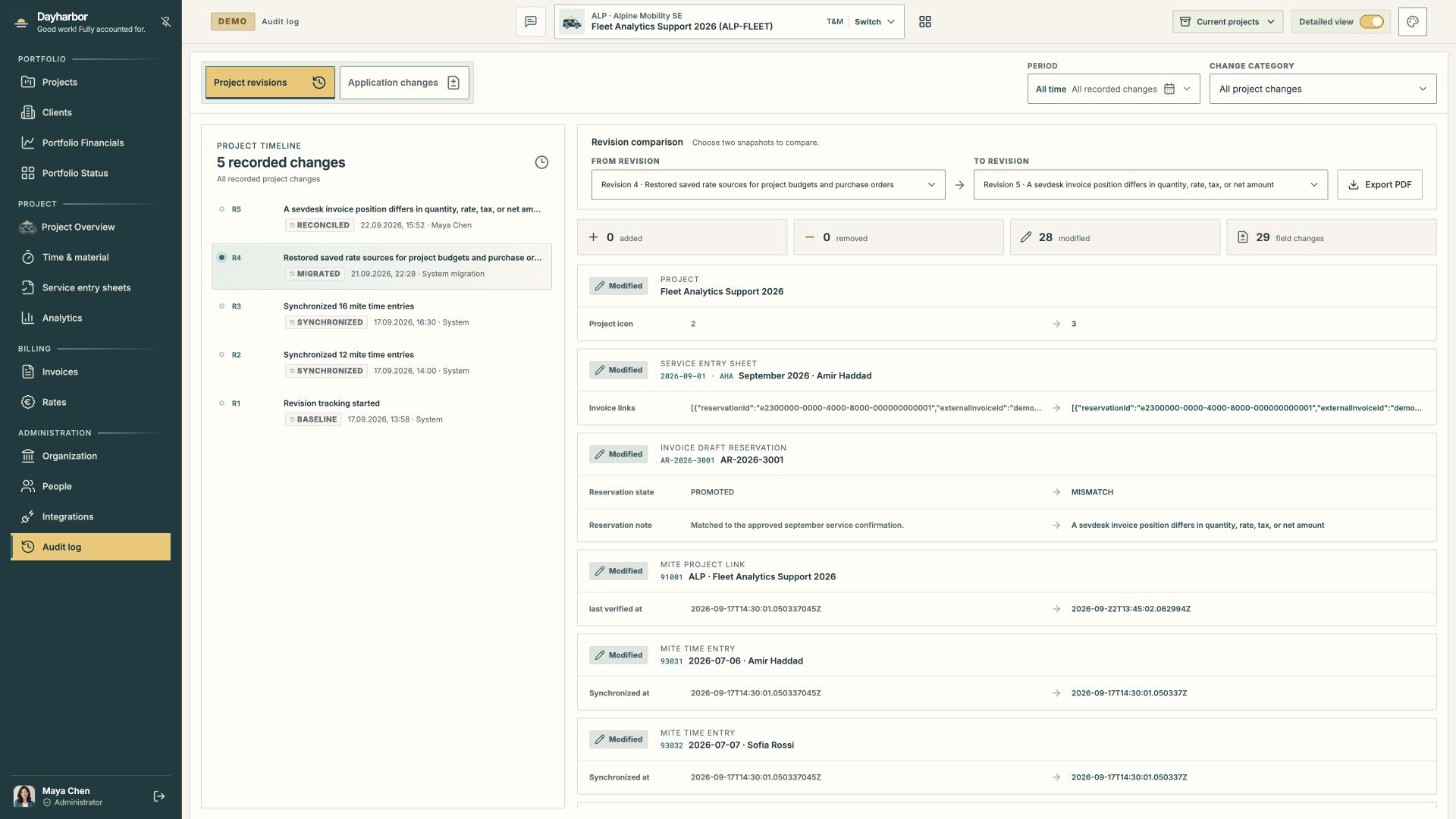
The Aurora Studio demo capture compares two recorded states of Fleet Analytics Support 2026. Invoice reconciliation, service entry sheet links, and synchronized records appear together in the field-level comparison.
Distinguish project revisions from application changes
Project revisions are snapshots of project-owned state. A successful audited project mutation creates an audit event and a project revision in the same transaction. Revisions let a reviewer compare meaningful before and after states.
Application changes cover audited organization-wide domains such as organization settings, users, clients, staff, rates, and integrations. Those changes create project revisions only where project-owned data materially changed.
Use the project timeline when the question is “How did this project’s plan or evidence change?” Use application changes when the question is “Who changed this organization-level record or access setting?”
Choose a useful comparison
Select a From revision and To revision that bracket the event under review. A baseline-to-current comparison is useful for a broad history; adjacent revisions are better for explaining one change.
Filter by period or change category when the project has a long history. Read the revision title, action, actor, and timestamp before interpreting field differences. System synchronization and a human edit may produce similar data changes but require different operational follow-up.
The summary counts added, removed, modified, and field-level changes. Counts help size the review; they do not establish importance. One changed client-visibility flag can matter more than hundreds of synchronized timestamps.
Read comparison rows in context
Each row names the domain record and shows changed fields. Identifiers and labels help connect the diff to the project screen. Review both the old and new value, then open the live record when the current operating context matters.
Common examples include:
- objective or task scope, status, dates, effort, priority, order, and visibility;
- team allocations, rate sources, and cost snapshots;
- project references, purchase orders, and commercial settings;
- mite mappings, imported entries, source timestamps, and conflict state;
- invoice allocations and retained billing evidence;
- client publication and conversation changes.
A blank value may mean the field was not previously populated, not that the system lost data. A provider timestamp change may be expected synchronization noise or evidence of a source correction. Interpret the field with the domain workflow.
Follow the actor and transaction
Audited mutations record the responsible principal where available. System jobs are identified as system activity. A successful event and its revision belong to the same transaction, preventing a change from being saved without its audit evidence.
If a requested mutation fails validation or authorization, it should not appear as a successful business change. Operational logs may still record an error, but the project history should not claim that a rejected update occurred.
Role and permission changes deserve special care. They may invalidate sessions so the new boundary takes effect after sign-in. Review the organization-level audit event, affected membership, explicit project overrides, and any project-owned visibility changes.
Use history to investigate synchronization
For a mite sync, compare provider identifiers, source update times, synchronized times, rate context, project mapping, and commercial status. If billed source work changes, the time-and-material register should show a conflict that blocks reuse.
For sevdesk, distinguish an imported provider status or PDF from a Dayharbor mapping decision. Reconcile invoice positions and allocations against the current provider record without overwriting the historical snapshot that supported earlier decisions.
The audit view helps establish sequence: connection test, synchronization, mapping, selection, draft creation, provider import, and reconciliation. It does not replace the external provider’s own audit or accounting records.
Export comparison evidence carefully
The project revision view can export a PDF comparison. Use it for a review pack, handover, or incident record when a static artifact is useful. Confirm the selected revisions and filter scope before export.
An exported comparison may contain internal project, people, source, and financial information. Store and share it according to the organization’s access and retention rules. Do not send a project-revision PDF to a client as a substitute for the client-safe status report.
A practical investigation sequence
When someone asks “Why did this number or status change?”:
- Record the current project, record, field, and observed value.
- Find the most recent revision where it differed.
- Compare adjacent revisions around that point.
- Read the action, actor, time, and changed fields.
- Open the current domain record and its retained source or invoice evidence.
- Check related application changes when rates, people, access, clients, or integrations are involved.
- Check the external provider record where it remains authoritative.
- Record the explanation and any corrective action on the affected work.
- Export only the evidence required for the audience.
Make audit useful through good records
History can show that a description changed, but only a clear description explains the project. It can show that a task moved to On hold, but a conversation or note should explain the decision. It can show that a rate changed, but the commercial record should justify the new basis.
Use meaningful titles, descriptions, structured references, resolution notes, and explicit publication decisions. The audit system preserves evidence; the project team still has to create evidence worth preserving.
For upstream source context, read connecting mite and sevdesk. For the external reporting boundary, use sharing progress with clients.